Since v1.11: a desktop app for Windows, macOS and Linux

Manga chapters → reader‑ready CBZ

Paste a link from MangaDex or any of 110 other supported sites, pick your chapters, and get clean CBZ files that open on your e-reader or in your favourite comic app.

Download the desktop app

For Windows, macOS and Linux

11K+downloads
26K+Docker pulls

Other platforms Command line Source code

  • 111 sites
  • CBZ or raw images
  • E-reader ready
  • Desktop app + CLI
  • Free and open source

Desktop app Since v1.11

Everything the CLI does, in a window

No terminal, no flags to remember. The same downloader, with a native window on Windows, macOS and Linux.

The desktop app with One Piece loaded from MangaDex: its cover, title and chapter list, with two chapters selected and Catalan picked as the language.

Paste a link, that's it

Paste a series URL and the app loads its title, cover and chapters straight away. No "load" button, no copying chapter links one by one.

Pick chapters your way

Type a range such as 1-10,12,15-20, or click a chapter and Shift-click another to select everything in between.

The chapter list during a run: eight chapters selected, the first ones already saved and the rest in progress in the Activity panel.

Your language, your group

When a series comes in several languages or from several scanlation groups, the app lists the ones it actually offers, so you pick from real options instead of guessing codes.

The language dropdown open over the chapter list, with Catalan selected among the languages One Piece is available in.

Watch it happen

Live progress for every chapter, with the files landing in the folder you picked through your system's own folder dialog. When the last one's done, so are you.

Light or dark

The app follows your system theme, so late-night reading sessions stay easy on the eyes.

A finished run: eight chapters saved to the output folder, each listed as saved in the Activity panel.

All downloads

Latest release on GitHub. Unsure which one? Most PCs are x64; Macs take the universal app.

Windows

5.5K+ downloads

Desktop app

Command line

macOS

4.1K+ downloads

Desktop app

Command line

Linux

1.9K+ downloads

Desktop app

Command line

The builds aren't signed, so Windows and macOS warn you the first time. Here's how to get past it.

Command line

One binary, no dependencies

No runtime, no config file. Great for scripts, servers and anyone who lives in a terminal.

Install it

Windows

Paste this in PowerShell. It installs to your user folder and adds it to your PATH, no admin rights needed. Run it again to update.

irm https://raw.githubusercontent.com/elboletaire/manga-downloader/master/install.ps1 | iex

Prebuilt binary

Grab the archive for your system from the downloads, extract it and run it:

./manga-downloader --help

Move it to a folder in your PATH, like /usr/local/bin, to run it from anywhere.

Homebrew

On macOS and Linux, from the elboletaire/tap tap. brew upgrade keeps it current.

brew install elboletaire/tap/manga-downloader

That's the command line tool only. On macOS, add --cask to get the desktop app with it.

Docker

Files land in the mounted folder. Use the :browser image for sites tagged browser.

docker run --rm -it -v "$PWD:/downloads" elboletaire/manga-downloader [url] [chapters]

Go

With Go installed, build it from source in one go:

go install github.com/elboletaire/manga-downloader@latest

Use it

  1. Point it at a manga's index page and say which chapters you want:

    manga-downloader https://mangadex.org/title/a1c7c817-4e59-43b7-9365-09675a149a6f/one-piece 1-10
  2. Only the Spanish chapters, bundled into a single CBZ:

    manga-downloader --language es --bundle [url] 1-8
  3. A strict e-ink setup, converting both AVIF and WebP pages to JPEG:

    manga-downloader --convert-images avif,webp [url] 1-10
  4. Drop the credits page and the last page of every chapter:

    manga-downloader --skip-pages 2,-1 [url] 1100-1110
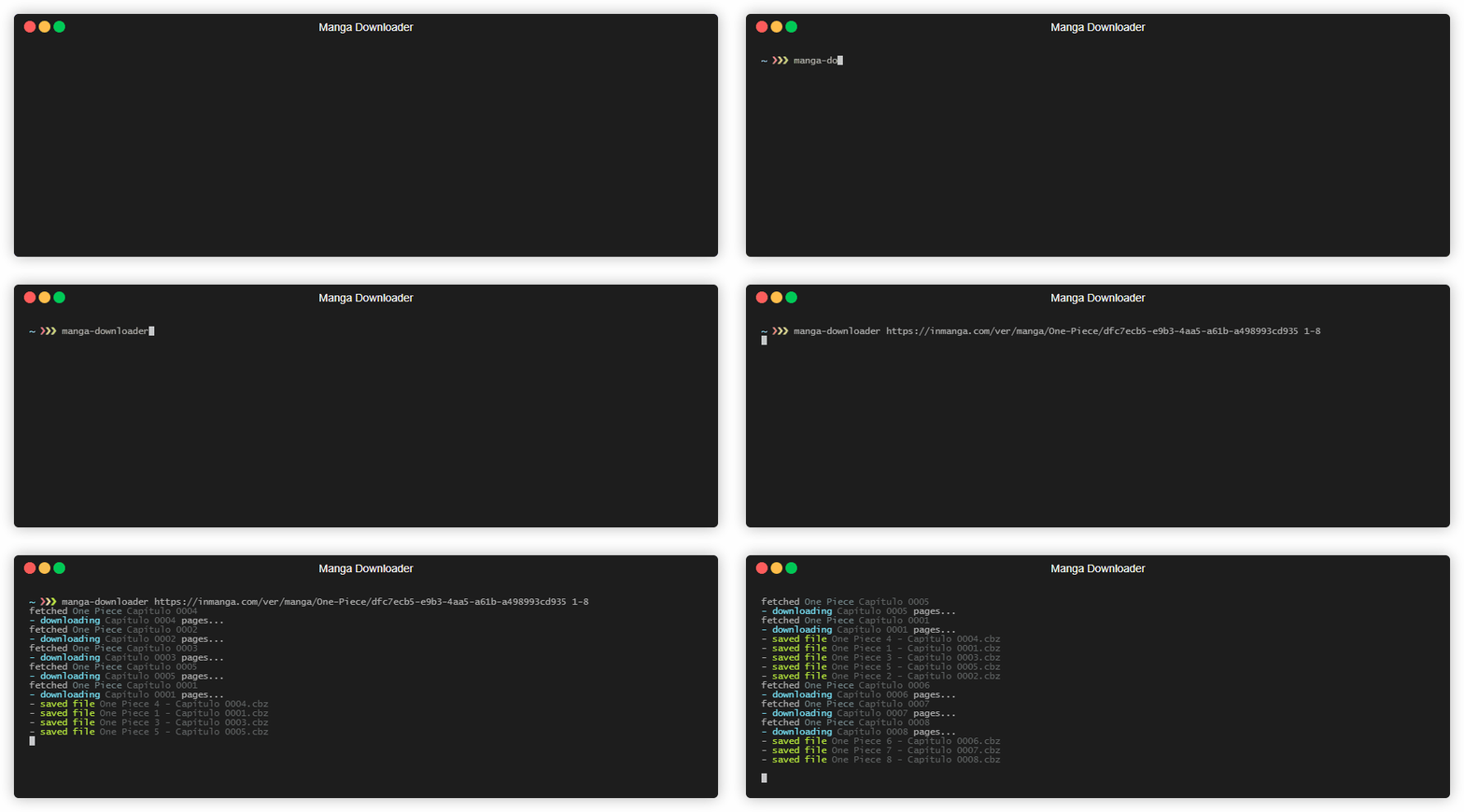
Terminal recording: manga-downloader downloads eight One Piece chapters at once, each with its own progress bar.
Eight chapters, downloaded side by side.
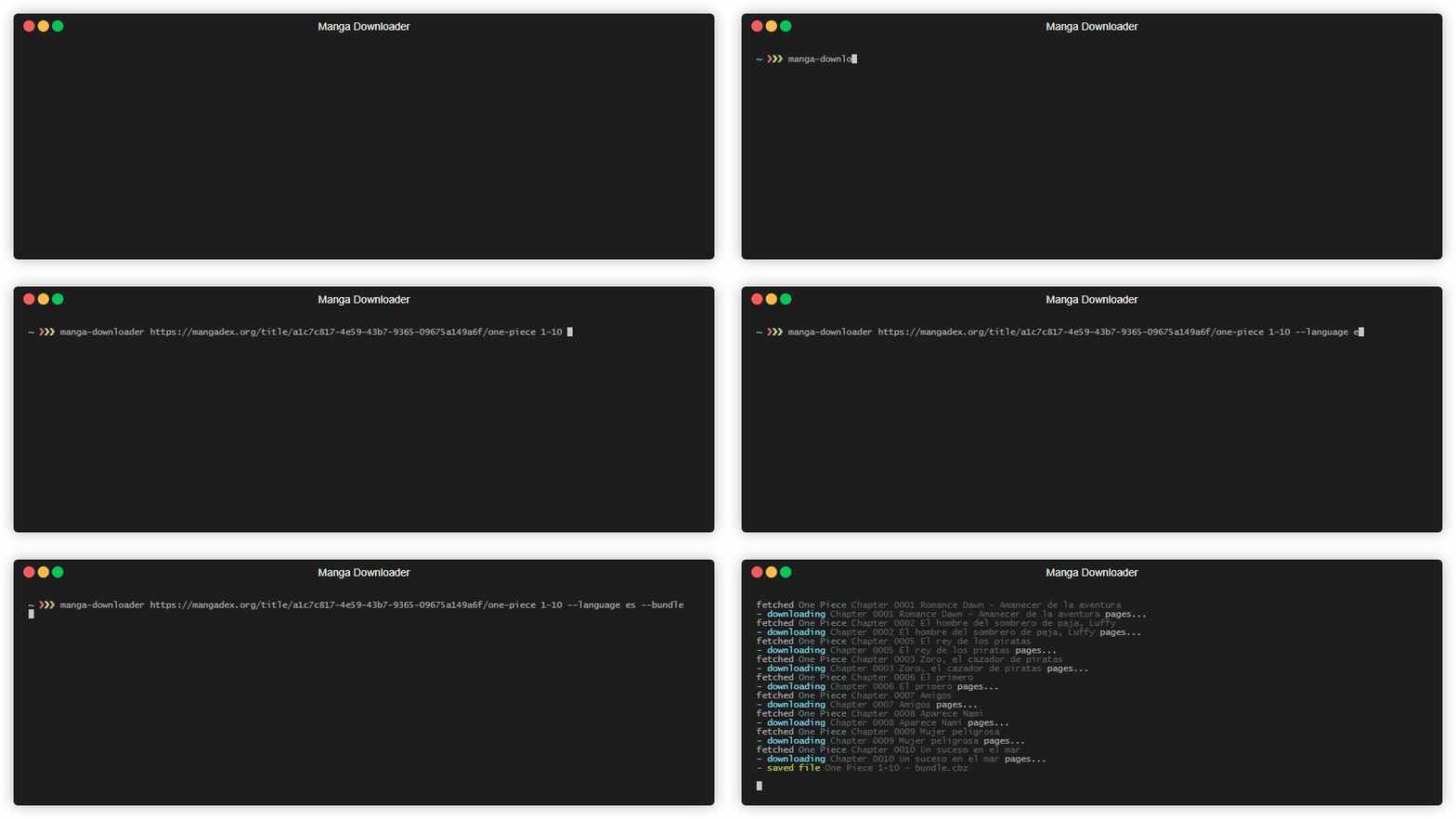
Terminal recording: the same chapters downloaded with --bundle, packed into a single CBZ file.
Add --bundle and they end up in a single file.

Every flag is in the usage guide, or run manga-downloader help.

Features

Made for reading, not fiddling

  • E-reader friendly

    AVIF pages become JPEG automatically, so they don't show up blank on Kobo, KOReader or Calibre. WebP too, if you ask.

  • CBZ or raw

    One CBZ per chapter, or plain image folders with --format raw when you'd rather do the packing yourself.

  • Bundles

    --bundle packs a whole arc into one file, with a folder per chapter inside it.

  • Chapter ranges

    Ask for 1,3,5-10 and get just those, so catching up means downloading only what's missing. Skip credit pages with --skip-pages.

  • Cloudflare, handled

    Sites that need JavaScript or sit behind Cloudflare run through your own Chrome, Edge or Brave, which even ticks "Verify you are human" for you.

  • Docker images

    A tiny image for plain sites, and a :browser one with Chromium and a virtual display for the rest.

  • Languages and groups

    Pick a language with --language, or a scanlation group with --scanlator when a site hosts several versions.

  • Your file names

    Name files your way with a template like {{.Series}} {{.Number}}. Clashing names get a version suffix, never an overwrite.

Supported sites

111 sites and counting

From big aggregators to small scanlation groups. Other sites built on the same platforms often work too, even when they aren't listed. If yours doesn't, open an issue.

Sites tagged browser (17 of them) need Chrome, Chromium, Brave or Edge installed. manga downloader opens it for you and only shows a window when a challenge needs solving.

FAQ

When things don't go to plan

Windows says "Windows protected your PC"

That's SmartScreen. The app is only flagged because it isn't signed. Click More info, then Run anyway. Windows remembers your choice.

macOS won't open it

Gatekeeper blocks unsigned apps the first time. Try to open it once and dismiss the warning, then go to System Settings → Privacy & Security, scroll down to Security and click Open Anyway. Open it again and confirm. You only need to do this once, for the app and for the command line alike.

Double-clicking manga-downloader.exe just flashes a window

That's the command line tool, which runs from a terminal. Use the PowerShell one-liner and run it from there, or get the desktop app if you'd rather click.

The newest chapter downloads empty or is missing

Many sites keep their latest chapters behind a paywall, and the page often looks normal. Try a slightly older chapter to confirm that the site works.

Old chapters are missing, or a warning says the range starts before the first chapter

Sites often delete old chapters. manga downloader can only download chapters that the site still lists.

A browser window pops up

That's expected for sites tagged browser in the list. The window opens when the site shows a Cloudflare challenge. Checkboxes are clicked automatically, but some challenges need you to click them yourself.

Pages don't show up on my e-reader

The site probably serves WebP images. Download the chapters again with --convert-images avif,webp.

My site isn't supported

Try it anyway: sites built on the same platforms as listed ones often work. If it doesn't, open an issue or send a pull request.